


doona
Web UI for the daeuniverse engines: nodes, groups, rules and the configuration, from a browser.
Install / Pages / Page tour / On a phone / Development
doona is a static web UI for the native API the daeuniverse engines share: honk today, dae once it implements the same contract. The engine serves it itself or any web server does; it shows what the engine is doing and manages nodes, groups, routing rules and configuration files.
Try the demo with sample data. To see the error states, open it with ?scenario=faults; ?scenario= returns to the healthy demo.
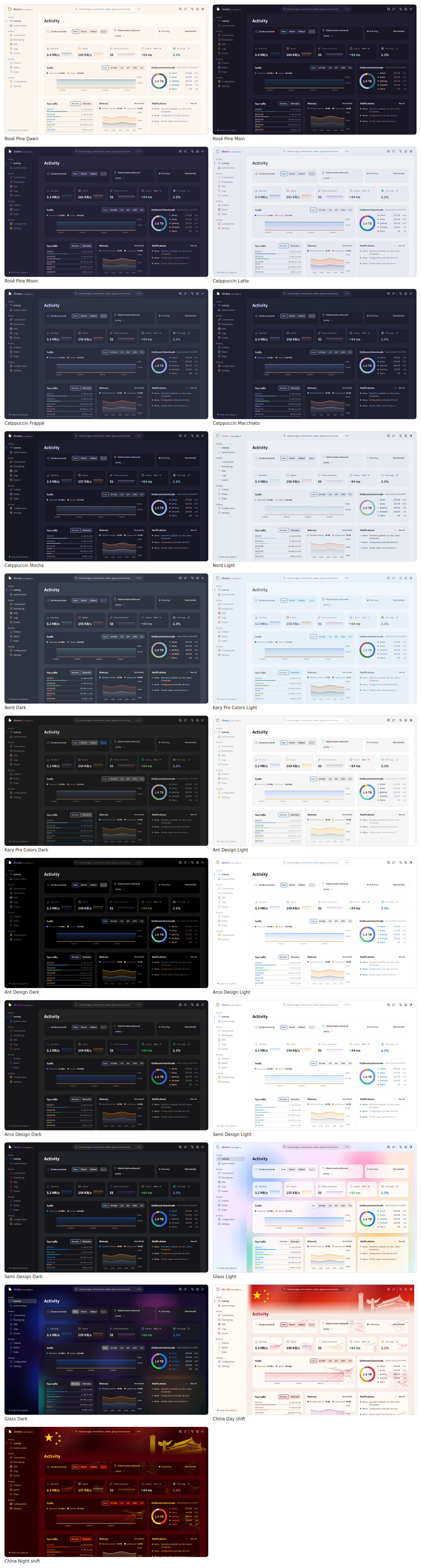
Every palette
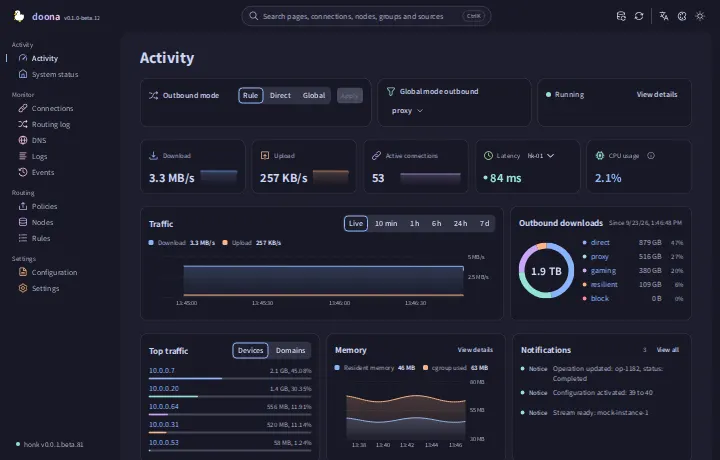
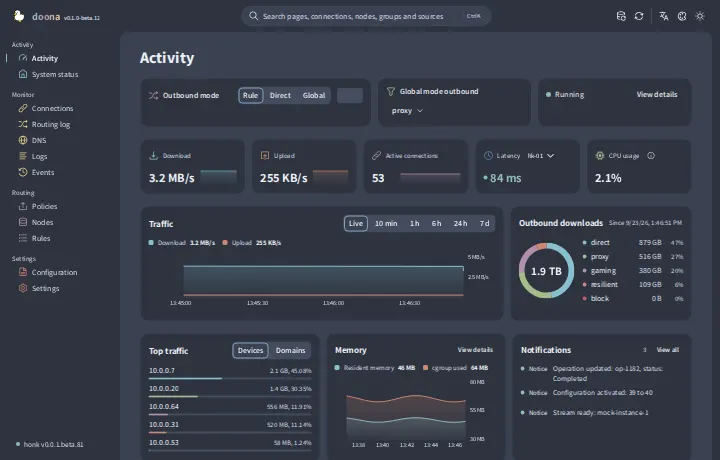
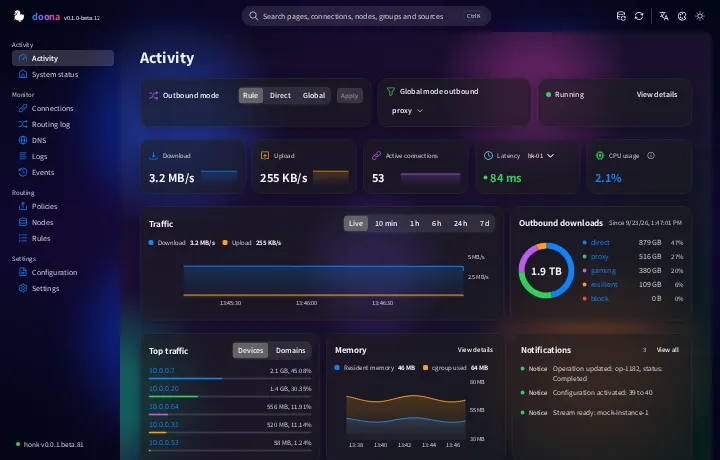
Eleven palettes support light and dark modes; Rosé Pine and Catppuccin include multiple dark flavours. Use the palette picker in the top bar.
Theme gallery
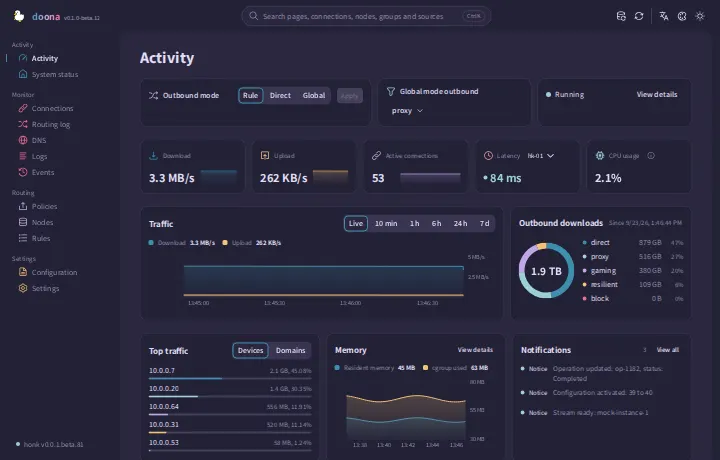
The activity page in four palettes. Select a palette and mode from the top bar.
| Theme gallery | Light | Dark |
|---|---|---|
| Rosé Pine | 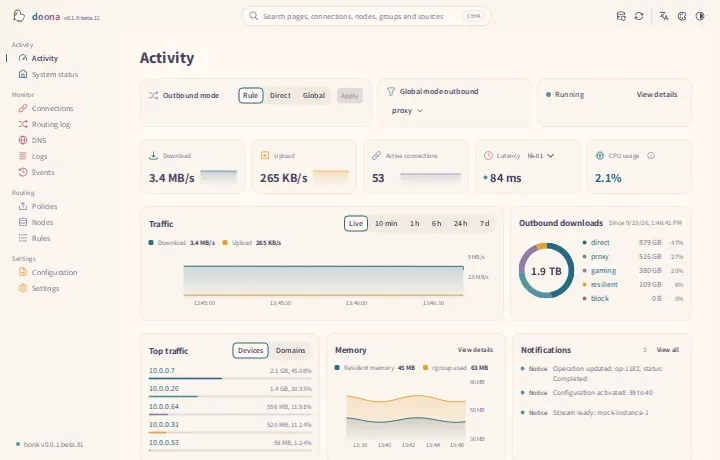 |
 |
| Catppuccin | 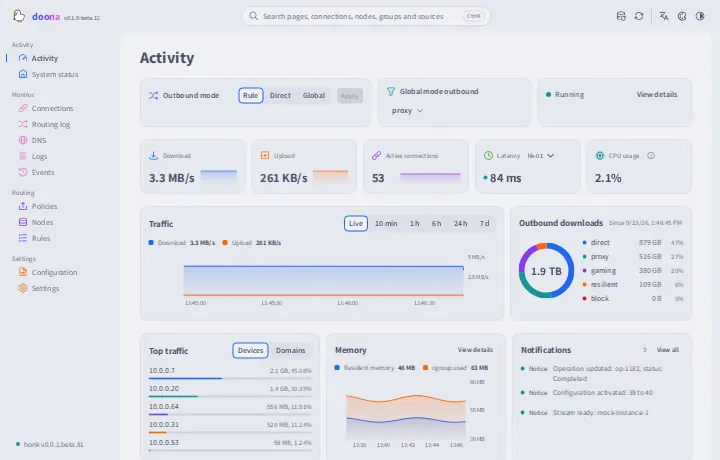 |
 |
| Nord | 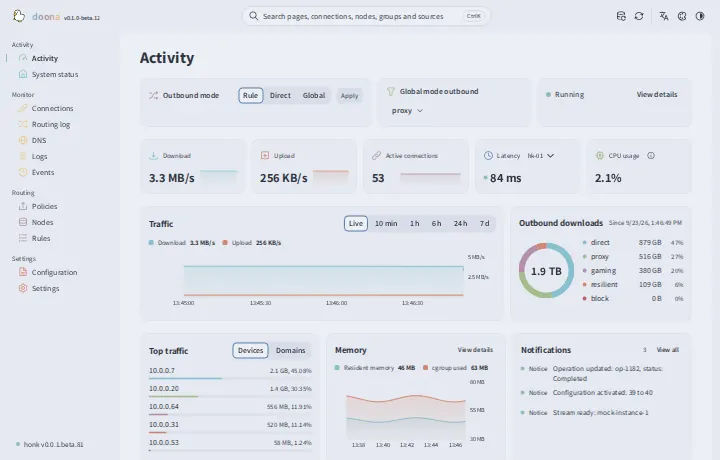 |
 |
| Glass | 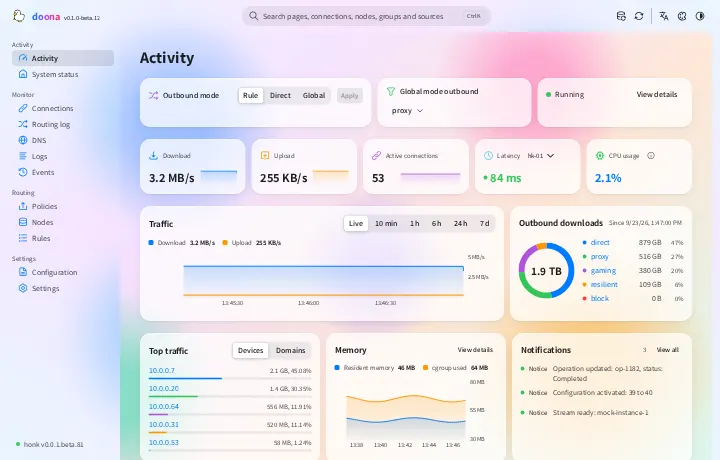 |
 |
Status
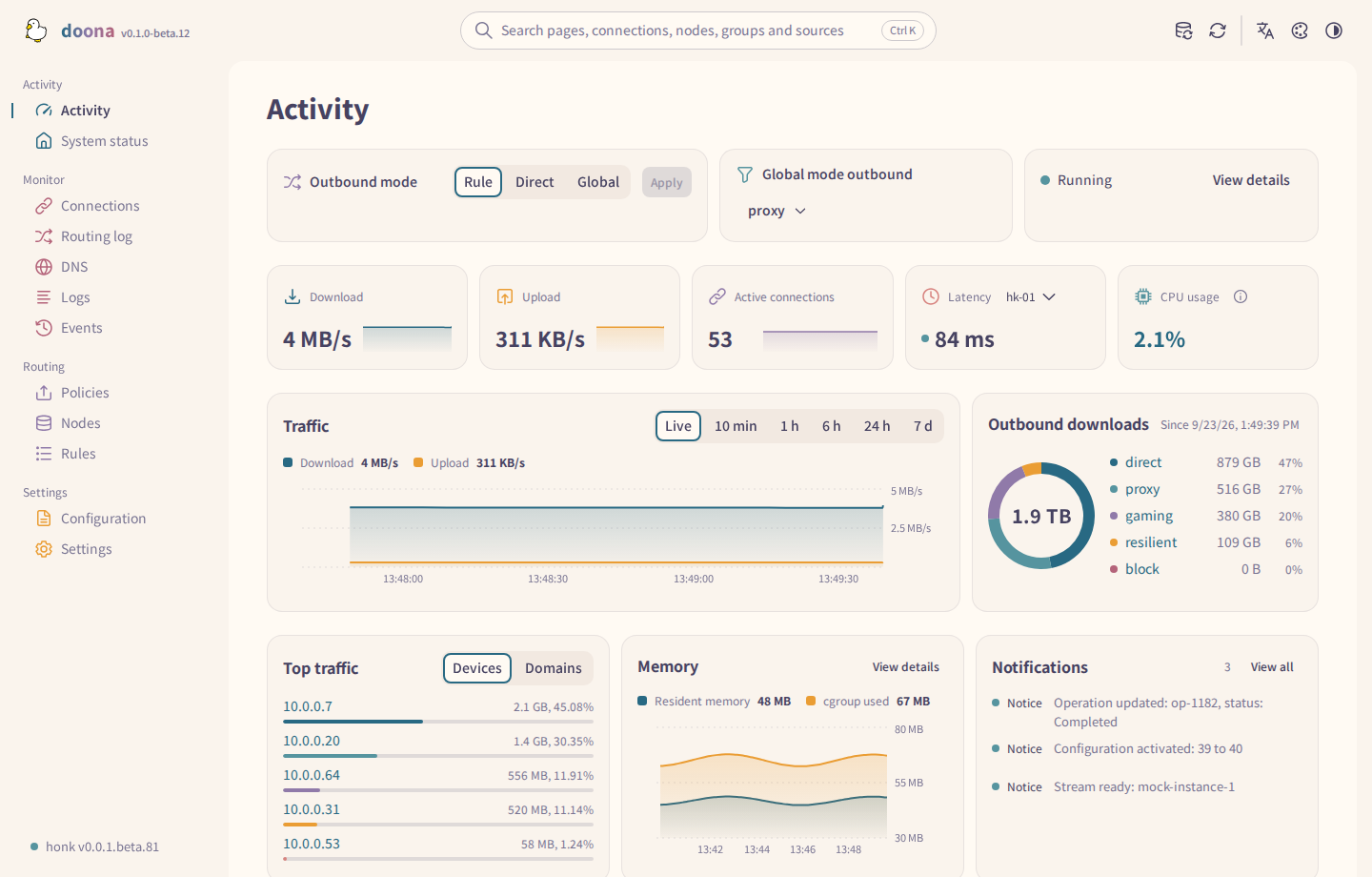
doona targets the native API implemented by honk's feat/native-api branch; that API is not released yet. The contract it is built against is pinned in SOURCE.md. Backends that omit newer resource keys are accepted: doona fills those keys as unavailable. With no backend configured, a built-in mock supplies demo data; every screenshot here shows the mock.
Install
doona needs honk's native API, which only the debug release of Glassyiris/honk feat/native-api provides so far. Release archives (doona-<version>.tar.gz, the optional doona-fonts-<version>.tar.gz with Noto Sans TC and SC, and SHA256SUMS) are attached to tags on the releases page. Extract them into the directory that honk's native_api block names in ui, and honk serves doona at /ui/.
From v0.1.0-beta.8 on, until honk publishes a release with the native API, each doona release also attaches prebuilt honk-core-debug-<target>[-stock].tar.gz archives from that debug release, so no one needs to compile honk. HONK-SOURCE.txt names the honk commit they were built from, honk-source-<commit>.tar.gz holds that commit's source, and SHA256SUMS covers every release asset except itself. Install honk explains which archive fits a gateway.
The documentation covers the requirements, installing honk and doona, an example configuration, the first sign-in, checking each feature and troubleshooting.
Pages
| Page | Shows |
|---|---|
| Activity | Outbound mode, traffic and memory, active connections, node latency, outbound usage, top clients, notifications |
| Overview | Engine and eBPF state, process CPU, traffic counters, backend capabilities and the features that are off, the status as JSON |
| Connections | Live connections with source, destination, rule, chain, traffic and transfer rates; fold groups, close one or all |
| DNS | Queries with their answers, the cache, the log; a flush |
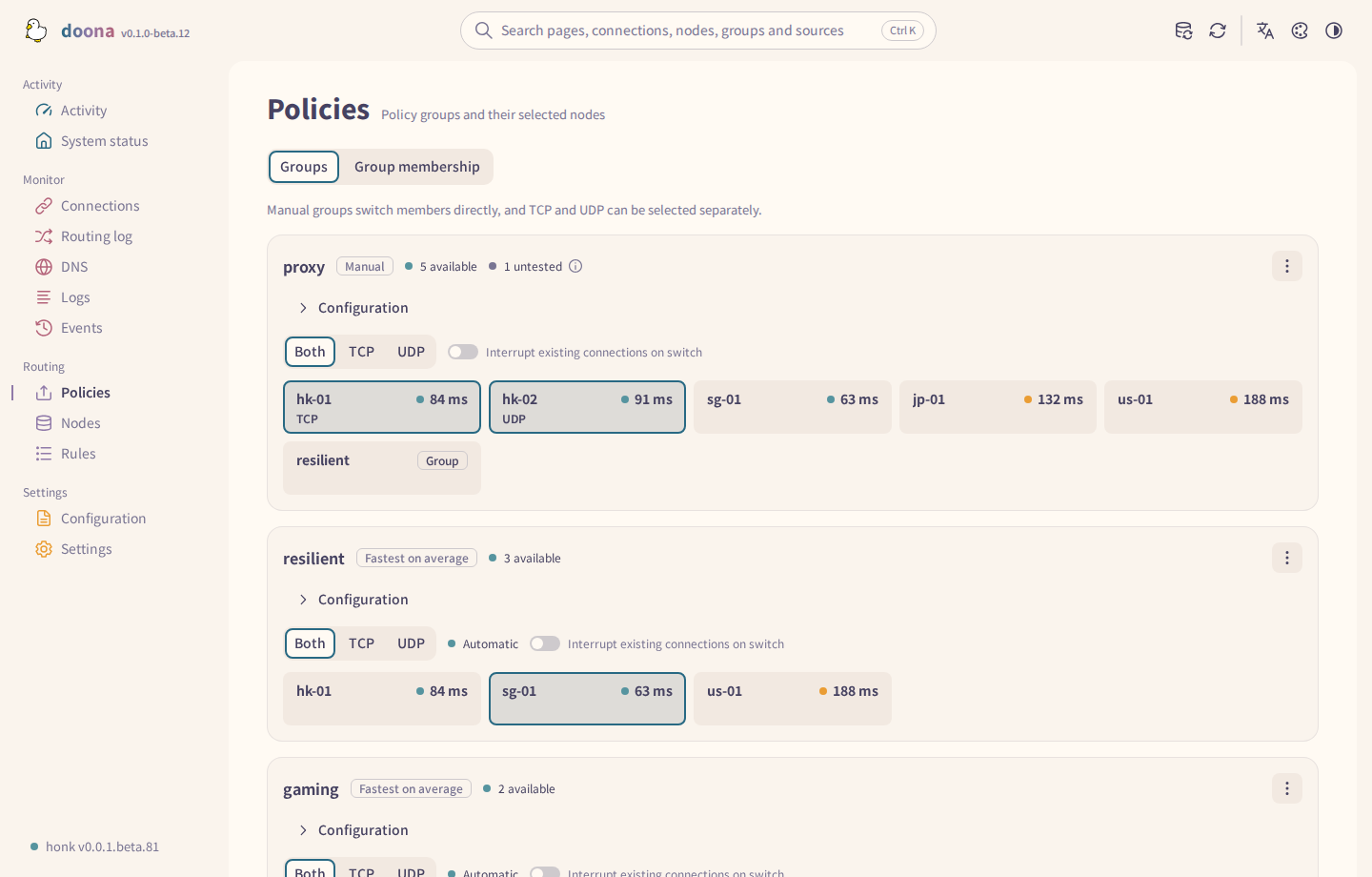
| Policies | Groups, their members and health; selection, pinning, probing, editing and health-check URLs |
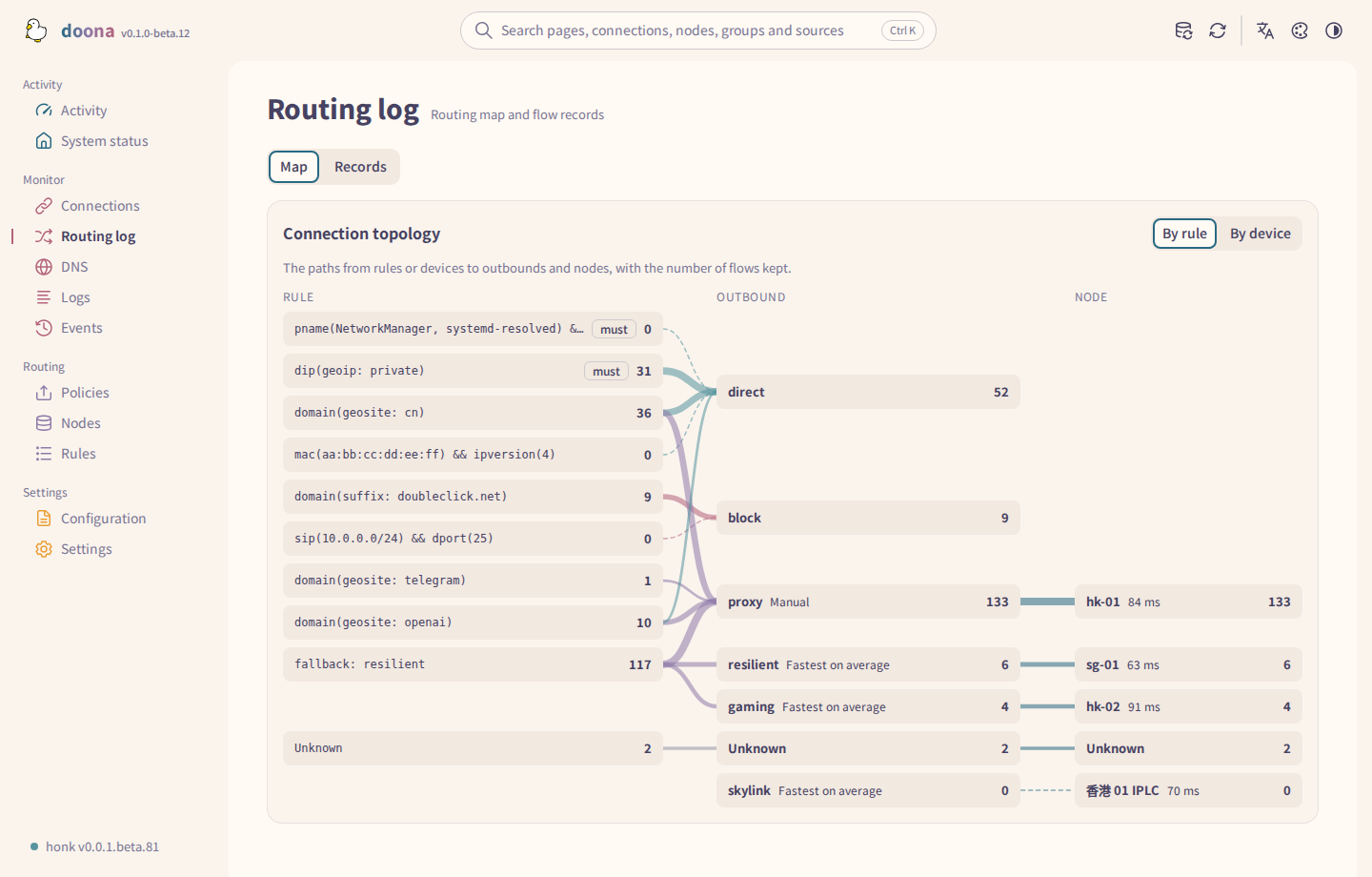
| Rules | A routing tree from rules or devices through outbounds to nodes, the rule list with hits, the flow log, a trace |
| Nodes | Subscriptions and their refresh interval, inline nodes, add and remove, probe and join a group |
| Configuration | Create source files and edit them in place, diagnostics, validation, quick setup and export |
| Events, Logs | The backend event stream; the log stream with filters, pause and export |
| Settings | Backends, runtime settings and backend actions, language, appearance, palette and notification placement |
A page is marked unavailable only when every resource it needs is unavailable. Ctrl K searches pages, connections, nodes, groups, rules and sources from anywhere. Which resources each page needs, and where doona keeps its own settings, are on the features page. Help buttons beside unclear states and terms explain them.
Sign-in is a page of its own with the language menu and scheme toggle. From 1024 pixels wide, a panel beside the form shows a construction scene; pressing it starts a Flappy Duck game. The demo fills in the user name demo and the password demo.
Page tour
Arranging groups
On the Arrange tab of Policies, drag a node or a subscription from the list on the right onto a group to add it. Keyboard dragging does the same, and Add to group below the list adds the selected rows to a group. The changes stay staged until you open Review and apply and press Apply.

Traffic and connections
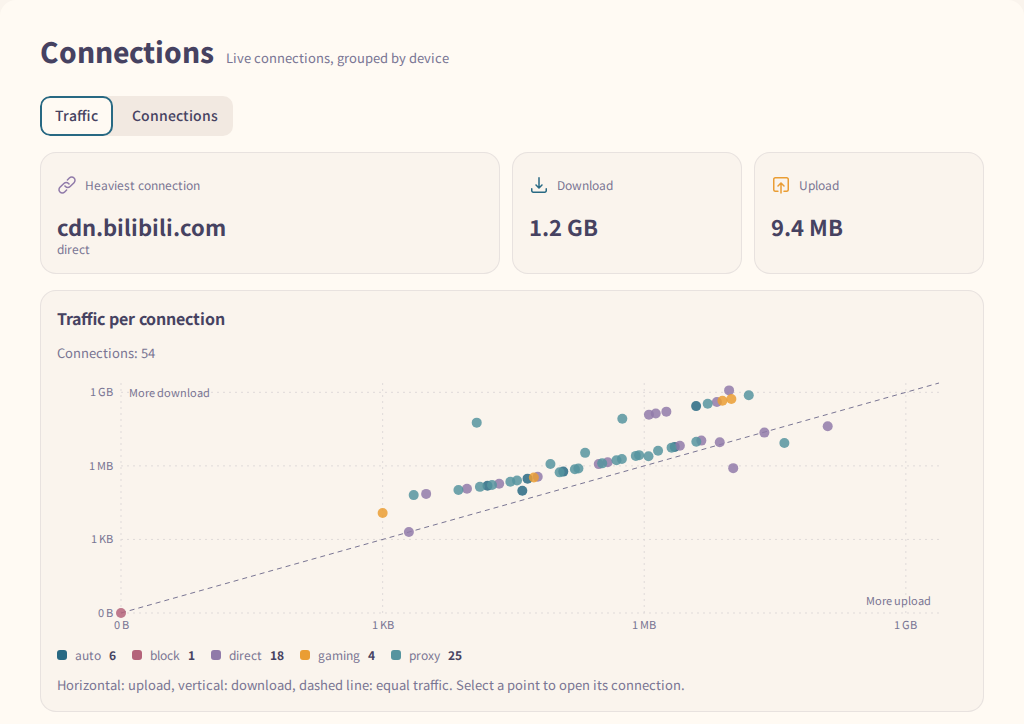
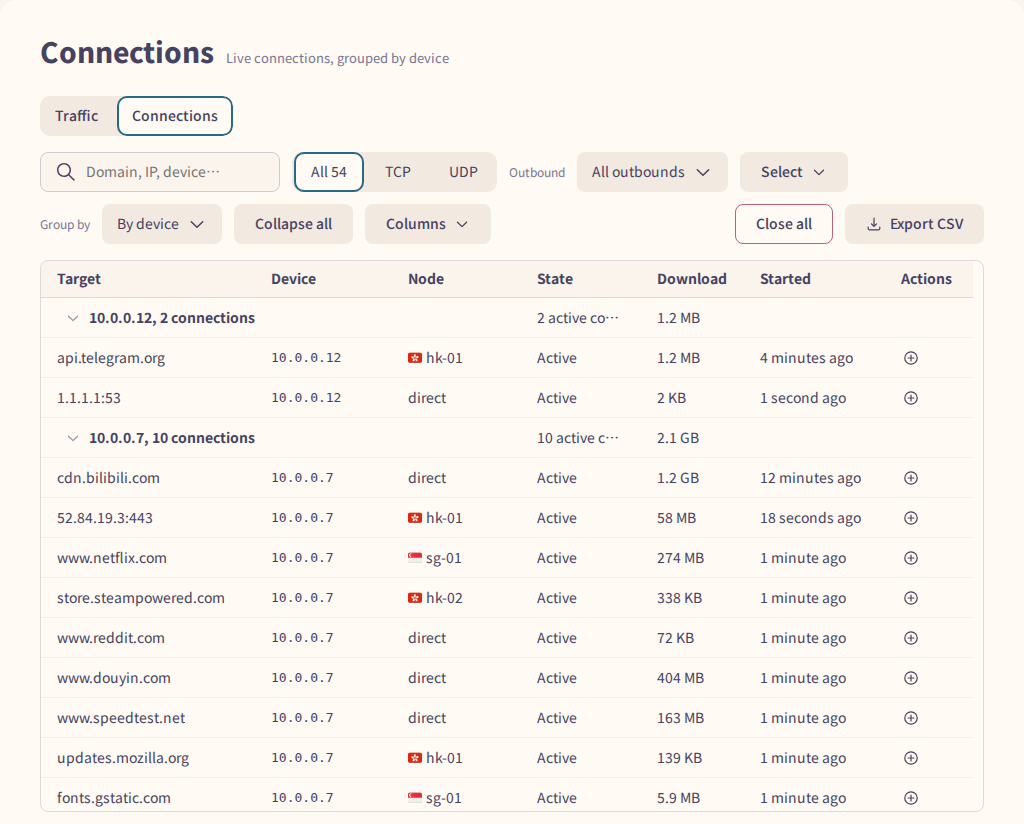
The Traffic tab of Connections plots each connection's upload against its download, coloured by outbound; select a point to open that connection. The Connections tab groups live connections by device or by outbound, filters them by protocol and outbound, and exports them as CSV.
DNS
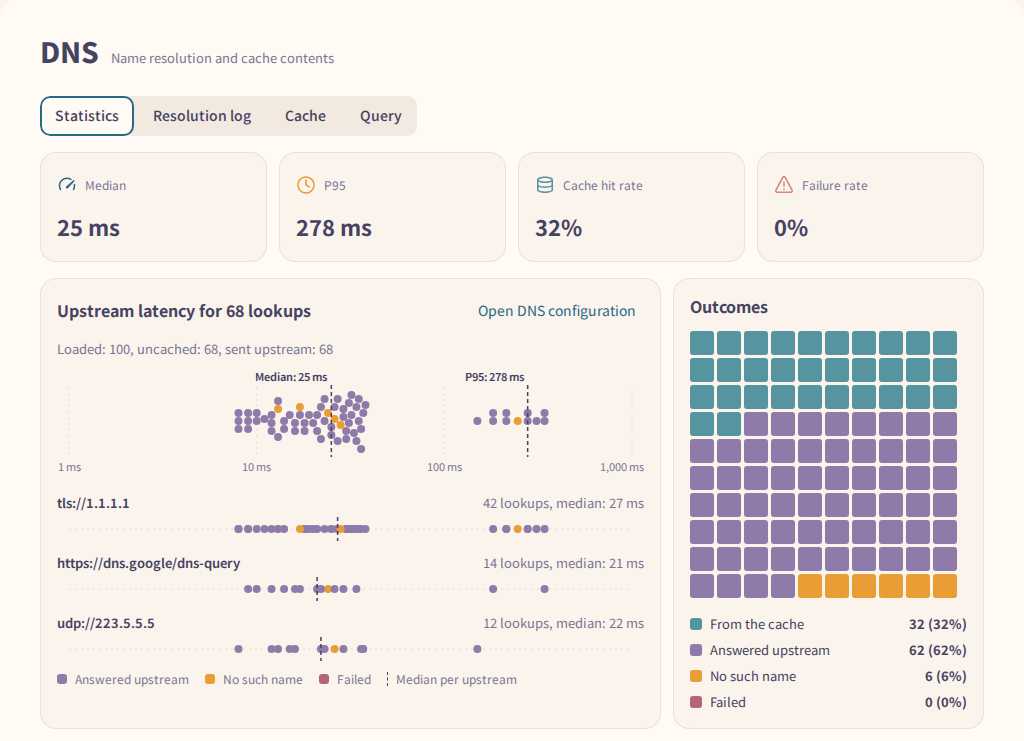
The Statistics tab shows the median and P95 resolution time, the cache hit rate and the failure rate. The charts below place each upstream's lookups on a latency scale and count how the queries ended.
Log activity
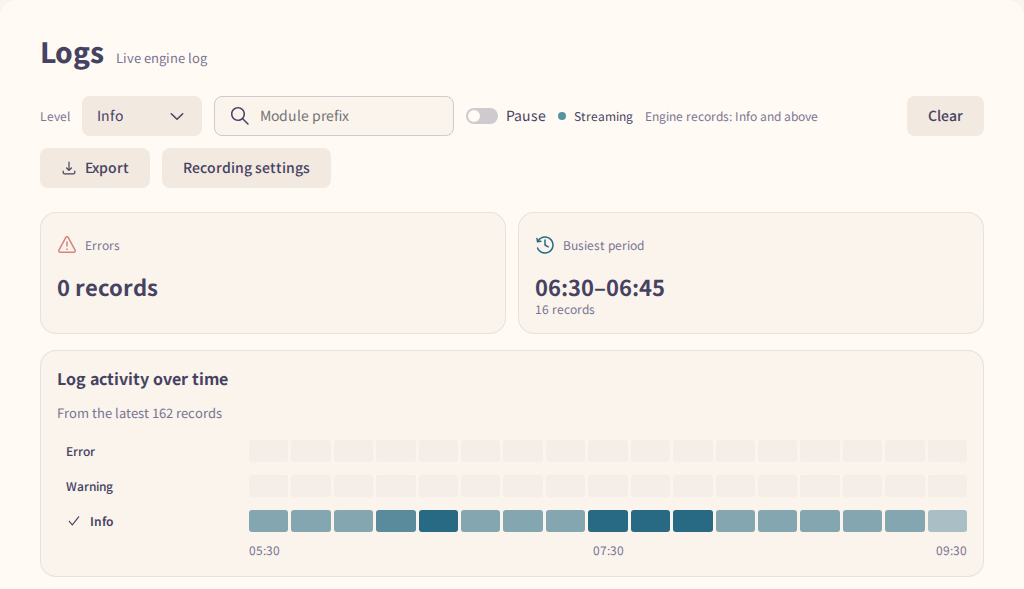
Above the log list, a heatmap counts records per level over time. A level's row header sets the minimum level the list shows.
Routing map

The routing map on Rules follows traffic from rules, or from devices, through outbounds to nodes. Point at or select a rule, outbound or node to highlight the paths through it.
Node latency
The Latency tab of Nodes plots each node's latest latency, and its moving average and the average of the last 10 measurements when the backend reports them. A switch groups the nodes by policy group or by protocol; unavailable nodes appear under their group.

On a phone
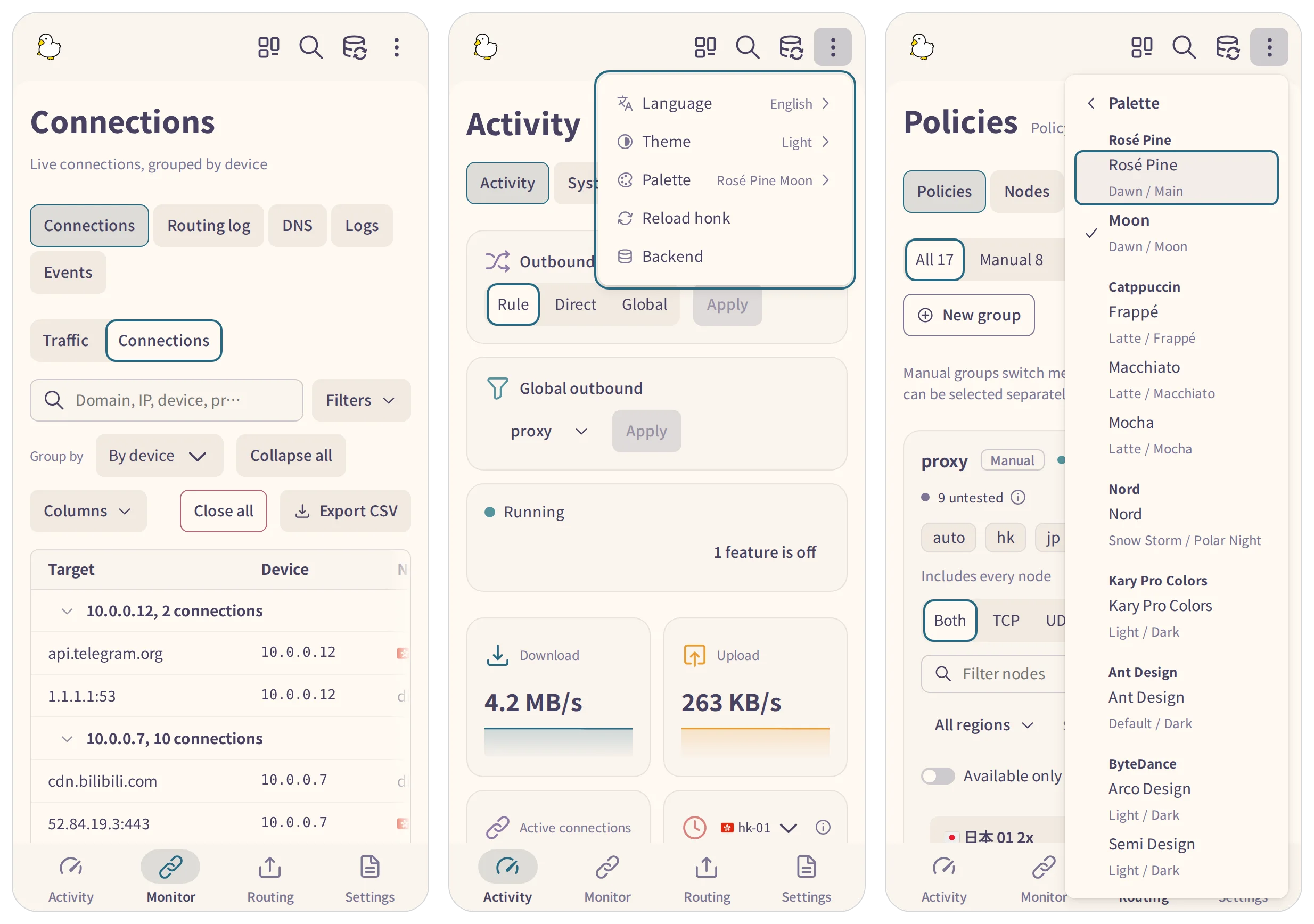
Below 1024 pixels wide, the side navigation becomes a bottom bar with four hubs: Overview, Traffic, Routing and Settings. A hub opens on the page last viewed in it during the session, and its pages sit in a row above the content. Language, theme, palette and wordmark move into the top bar's overflow menu, a submenu each.
Below 600 pixels wide, tables keep every column and scroll sideways; on wider screens they drop the columns that do not fit, in a set order. Toolbars wrap onto more rows. On Events and Logs, press a row to read its full text below the table. On Overview, DNS and Logs, the first page action stays a button and the rest move into a menu.
Over HTTPS or on localhost, doona installs as an app. In Chrome and Edge, the About card in Settings offers Install as an app. Safari has no install prompt, so the card shows the steps instead. On iPhone and iPad, tap Share, then Add to Home Screen. In Safari 26 on macOS, choose File > Add to Dock.
Development
The build, test and packaging commands, the source layout and the contract pin are on the development page. See CONTRIBUTING.md before opening a pull request.
Support
Report bugs and ask questions in the issues. Report backend issues to the connected engine's project: honk or dae. See SECURITY.md for reporting a vulnerability.
License and credits
GPL-3.0-only. Noto Sans TC and SC are copyright Adobe and licensed under the Open Font License; NOTICE credits the Adobe Spectrum icons (Apache-2.0). The duck is the maintainer's own artwork.